/var/

Various programming stuff

Ajax data with Fixed Data Table for React

Introduction

FixedDataTable is a nice React component from Facebook that is used to render tabular data. Its main characteristic is that it can handle many rows without sacrificing performance, however probably due to this fact I was not able to find any examples for loading data using Ajax - all examples I was able to find had the data already loaded (or created on the fly).

So, although FixedDataTable is able to handle many rows, I am against transfering all of them to the user whenever our page loads since at most one page of data will be shown on screen (30 rows or so ?) - any other actions (filtering, sorting, aggregate calculations etc) should be done on the server.

In the following I will present a simple, react-only example with a FixedDataTable that can be used with server-side, asynchronous, paginated data.

Our project

Let’s see an example of what we’ll build:

Our project

As a source of the data I’ve used the Star Wars API and specifically its People API by issuing requests to http://swapi.co/api/people/?format=json. This will return an array of people from the star wars universe in JSON format - the results are paginated with a page size of 10 (and we can switch to another page using the extra page= request parameter).

I will use es6 with the object spread operator (as described in a previous article) to write the code, using a single main.js as a source which will be transpiled to dist/bundle.js.

The placeholder HTML for our application is:

<!DOCTYPE html>
<html>
  <head>
    <meta charset="UTF-8" />
    <title>Hello Ajax Fixed Data Table!</title>
    <link rel="stylesheet" href='https://cdnjs.cloudflare.com/ajax/libs/fixed-data-table/0.6.0/fixed-data-table.min.css'>
  </head>
  <body>
    <div id="main"></div>
    <script type="text/javascript" src='dist/bundle.js' ></script>
  </body>
</html>

The versions that are used are react 14.3 and fixed-data-table 0.6.0. You can find this project in github @ https://github.com/spapas/react-tables — tag name fixed-data-table-ajax.

How FixedDataTable gets its data

The data of a FixedDataTable component is defined through a number of Column components and specifically, the cell attribute of that component which sould either return be a static string to be displayed in that column or a React component (usually a Cell) that will be displayed in that column or even a function that returns a string or a react component. The function (or component) passed to cell will have an object with a rowIndex attribute (among others) as a parameter, for example the following

<Column
  header={<Cell>Url</Cell>}
  cell={props => props.rowIndex}
  width={200}
/>

will just display the rowIndex for each cell.

So we can see that for each cell that FixedDataTable wants to display it will use its corresponding cell attribute. So, a general though if we wanted to support asynchronous, paginated data is to check the rowIndex and retrieve the correct page asynchronously. This would lead to a difficulty: What should the cell function return? We’ll try to resolve this using an AjaxCell function that should return a react componet to put in the cell:

AjaxCell: Non working version 1

A first sketch of an `AjaxCell component could be something like this:

// Careful - not working
const AjaxCell1 = ({rowIndex, col, ...props}) => {
    let page = 1;
    let idx = rowIndex;
    if(rowIndex>=pageSize) {
        page = Math.floor(rowIndex / pageSize) + 1;
        idx = rowIndex % pageSize;
    }
    fetch('http://swapi.co/api/people/?format=json&page='+page).then(function(response) {
        return response.json();
    }).then(function(j) {
        // Here we have the result ! But where will it go ?
    });
    return /// what ?
}

The col attribute will later be used to select the attribute we want to display in this cell. The page and idx will have the correct page number and idx inside that page (for example, if rowIndex is 33, page will be 4 and idx will be 3. The problem with the above is that the fetch function will be called asynchronously so when the AjaxCell returns it will not have the results (yet)! So we won’t be able to render anything :(

AjaxCell: Non working version 2

To be able to render something, we could put the results of fetching a page to a cache dictionary — and only fetch that page if it is not inside the cache - if it is inside the cache then we’ll just return the correct value:

// Careful - not working correctly
const cache = {}
const AjaxCell2 = ({rowIndex, col, forceUpdate, ...props}) => {
    let page = 1;
    let idx = rowIndex;
    if(rowIndex>=pageSize) {
        page = Math.floor(rowIndex / pageSize) + 1;
        idx = rowIndex % pageSize;
    }
    if (cache[page]) {
        return <Cell>{cache[page][idx][col]}</Cell>
    } else {
        console.log("Loading page " + page);
        fetch('http://swapi.co/api/people/?format=json&page='+page).then(function(response) {
            return response.json();
        }).then(function(j) {
            cache[page] = j['results'];
        });
    }
    return <Cell>-</Cell>;
}

The above will work, since it will return an empty (<Cell>-</Cell>) initially but when the fetch returns it will set the cache for that page and return the correct value (<Cell>{cache[page][idx][col]}</Cell>).

However, as can be understood, when the page first loads it will call AjaxCell2 for all visible cells — because fetch is asynchronous and takes time until it returns (and sets the cache for that page), so the fetch will be called for all cells!

AjaxCell: Non working version 3

fetch ing each page multiple times is of course not acceptable, so we’ll add a loading flag and fetch will be called only when this flag is false, like this:

// Not ready yet
const cache = {};
let loading = false;
const AjaxCell2 = ({rowIndex, col, ...props}) => {
    let page = 1;
    let idx = rowIndex;
    if(rowIndex>=pageSize) {
        page = Math.floor(rowIndex / pageSize) + 1;
        idx = rowIndex % pageSize;
    }
    if (cache[page]) {
        return <Cell>{cache[page][idx][col]}</Cell>
    } else if(!loading) {
        console.log("Loading page " + page);
        loading = true;

        fetch('http://swapi.co/api/people/?format=json&page='+page).then(function(response) {
            return response.json();
        }).then(function(j) {
            cache[page] = j['results'];
            loading = false;
        });
    }
    return <Cell>-</Cell>;
}

This works much better - the cells are rendered correctly and each page is loaded only once. However, if for example I tried to move to the end of the table quickly, I would see some cells that are always loading (they never get their correct value). This is because there is no way to know that the fetch function has actually completed in order to update with the latest (correct) value of that cell and will contain the stale placeholder (<Cell>-</Cell>) value.

AjaxCell: Final version

To clear the stale data we need to do an update to the table data when each fetch is finished — this should be done by a callback that will be passed to the AjaxCell, like this:

const cache = {};
let loading = false;
const AjaxCell = ({rowIndex, col, forceUpdate, ...props}) => {
    let page = 1;
    let idx = rowIndex;
    if(rowIndex>=pageSize) {
        page = Math.floor(rowIndex / pageSize) + 1;
        idx = rowIndex % pageSize;
    }
    if (cache[page]) {
        return <Cell>{cache[page][idx][col]}</Cell>
    } else if(!loading) {
        console.log("Loading page " + page);
        loading = true;

        fetch('http://swapi.co/api/people/?format=json&page='+page).then(function(response) {
            return response.json();
        }).then(function(j) {
            cache[page] = j['results'];
            loading = false;
            forceUpdate();
        });
    }
    return loadingCell;
}

So we pass a forceUpdate callback as a property which is called when a fetch is finished. This may result to some not needed updates to the table (since we would do a fetch + forceUpdate for non-displayed data) but we can now be positive that when the data is loaded the table will be updated to dispaly it.

The Table container component

Finally, the component that contains the table is the following:

class TableContainer extends React.Component {
    render() {
        return <Table
            rowHeight={30} rowsCount={87} width={600} height={200} headerHeight={30}>

            <Column
              header={<Cell>Name</Cell>}
              cell={ <AjaxCell col='name' forceUpdate={this.forceUpdate.bind(this)} /> }
              width={200}
            />
            <Column
              header={<Cell>Birth Year</Cell>}
              cell={ <AjaxCell col='birth_year' forceUpdate={this.forceUpdate.bind(this)} /> }
              width={200}
            />
            <Column
              header={<Cell>Url</Cell>}
              cell={ <AjaxCell col='url' forceUpdate={this.forceUpdate.bind(this)} /> }
              width={200}
            />

        </Table>
    }
}

I’ve made it a component in order to be able to bind the forceUpdate method of the component to and this and pass it to the forceUpdate parameter to the AjaxCell component. I’ve hard-coded the rowsCount value — instead we should have done an initial fetch to the first page of the API to get the total number of rows and only after that fetch had returned display the <Table> component (left as an exercise to the reader).

Some enchancements

Instead of displaying <Cell>-</Cell> (or </Cell>) when the page loads, I propose to define a cell with an embedded spinner, like

const loadingCell = <Cell>
    <img width="16" height="16" alt="star" src="data:image/gif;base64,R0lGODlhEAAQAPIAAP///wAAAMLCwkJCQgAAAGJiYoKCgpKSkiH/C05FVFNDQVBFMi4wAwEAAAAh/hpDcmVhdGVkIHdpdGggYWpheGxvYWQuaW5mbwAh+QQJCgAAACwAAAAAEAAQAAADMwi63P4wyklrE2MIOggZnAdOmGYJRbExwroUmcG2LmDEwnHQLVsYOd2mBzkYDAdKa+dIAAAh+QQJCgAAACwAAAAAEAAQAAADNAi63P5OjCEgG4QMu7DmikRxQlFUYDEZIGBMRVsaqHwctXXf7WEYB4Ag1xjihkMZsiUkKhIAIfkECQoAAAAsAAAAABAAEAAAAzYIujIjK8pByJDMlFYvBoVjHA70GU7xSUJhmKtwHPAKzLO9HMaoKwJZ7Rf8AYPDDzKpZBqfvwQAIfkECQoAAAAsAAAAABAAEAAAAzMIumIlK8oyhpHsnFZfhYumCYUhDAQxRIdhHBGqRoKw0R8DYlJd8z0fMDgsGo/IpHI5TAAAIfkECQoAAAAsAAAAABAAEAAAAzIIunInK0rnZBTwGPNMgQwmdsNgXGJUlIWEuR5oWUIpz8pAEAMe6TwfwyYsGo/IpFKSAAAh+QQJCgAAACwAAAAAEAAQAAADMwi6IMKQORfjdOe82p4wGccc4CEuQradylesojEMBgsUc2G7sDX3lQGBMLAJibufbSlKAAAh+QQJCgAAACwAAAAAEAAQAAADMgi63P7wCRHZnFVdmgHu2nFwlWCI3WGc3TSWhUFGxTAUkGCbtgENBMJAEJsxgMLWzpEAACH5BAkKAAAALAAAAAAQABAAAAMyCLrc/jDKSatlQtScKdceCAjDII7HcQ4EMTCpyrCuUBjCYRgHVtqlAiB1YhiCnlsRkAAAOwAAAAAAAAAAAA==" />
</Cell>

and return this instead.

Also, if your REST API returns too fast and you’d like to see what would happen if the server request took too long to return, you could change fetch like this

fetch('http://swapi.co/api/people/?format=json&page='+page).then(function(response) {
    return response.json();
}).then(function(j) {
    setTimeout( () => {
        cache[page] = j['results'];
        loading = false;
        forceUpdate();
    }, 1000);
});

to add a 1 second delay.

Conslusion

The above is a just a proof of concept of using FixedDataTable with asynchronously loaded server-side data. This of course could be used for small projects (I am already using it for an internal project) but I recommend using the flux architecture for more complex projects. What this more or less means is that a store component should be developed that will actually keep the data for each row, and a fetchCompleted action should be dispatched when the fetch is finished instead of calling forceUpdate directly.

PDFs in Django: The essential guide

Introduction

I’ve noticed that although it is easy to create PDFs with Python, there’s no complete guide on how to integrate these tools with Django and resolve the problems that you’ll encounter when trying to actually create PDFs from your Django web application.

In this article I will present the solution I use for creating PDFs with Django, along with various tips on how to solve most of your common requirements. Specifically, here are some things that we’ll cover:

  • Learn how to create PDFs "by hand"
  • Create PDFs with Django using a normal Djang Template (similar to an HTML page)
  • Change the fonts of your PDFs
  • Use styling in your output
  • Create layouts
  • Embed images to your PDFs
  • Add page numbers
  • Merge (concatenate) PDFs

The players

We are going to use the following main tools:

  • ReportLab is an open source python library for creating PDFs. It uses a low-level API that allows "drawing" strings on specific coordinates on the PDF - for people familiar with creating PDFs in Java it is more or less iText for python.
  • xhtml2pdf (formerly named pisa) is an open source library that can convert HTML/CSS pages to PDF using ReportLab.
  • django-xhtml2pdf is a wrapper around xhtml2pdf that makes integration with Django easier.
  • PyPDF2 is an open source tool of that can split, merge and transform pages of PDF files.

I’ve created a django project https://github.com/spapas/django-pdf-guide with everything covered here. Please clone it, install its requirements and play with it to see how everything works !

Before integrating the above tools to a Django project, I’d like to describe them individually a bit more. Any files I mention below will be included in this project.

ReportLab

ReportLab offers a really low API for creating PDFs. It is something like having a canvas.drawString() method (for people familiar with drawing APIs) for your PDF page. Let’s take a look at an example, creating a PDF with a simple string:

from reportlab.pdfgen import canvas
import reportlab.rl_config


if __name__ == '__main__':
    reportlab.rl_config.warnOnMissingFontGlyphs = 0
    c = canvas.Canvas("./hello1.pdf",)
    c.drawString(100, 100, "Hello World")
    c.showPage()
    c.save()

Save the above in a file named testreportlab1.py. If you run python testreportlab1.py (in an environment that has reportlab of cours) you should see no errors and a pdf named hello1.pdf created. If you open it in your PDF reader you’ll see a blank page with "Hello World" written in its lower right corner.

If you try to add a unicode text, for example "Καλημέρα ελλάδα", you should see something like the following:
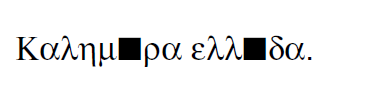
Hello PDF

It seems that the default font that ReportLab uses does not have a good support for accented greek characters since they are missing (and probably for various other characters).

To resolve this, we could try changing the font to one that contains the missing symbols. You can find free fonts on the internet (for example the DejaVu font), or even grab one from your system fonts (in windows, check out c:\windows\fonts\). In any case, just copy the ttf file of your font inside the folder of your project and crate a file named testreportlab2.py with the following (I am using the DejaVuSans font):

# -*- coding: utf-8 -*-
import reportlab.rl_config
from reportlab.pdfbase import pdfmetrics
from reportlab.pdfbase.ttfonts import TTFont


if __name__ == '__main__':
    c = canvas.Canvas("./hello2.pdf",)
    reportlab.rl_config.warnOnMissingFontGlyphs = 0
    pdfmetrics.registerFont(TTFont('DejaVuSans', 'DejaVuSans.ttf'))

    c.setFont('DejaVuSans', 22)
    c.drawString(100, 100, u"Καλημέρα ελλάδα.")

    c.showPage()
    c.save()

The above was just a scratch on the surface of ReportLab, mainly to be confident that everything will work fine for non-english speaking people! To find out more, you should check the ReportLab open-source User Guide.

I also have to mention that the company behind ReportLab offers some great commercial solutions based on ReportLab for creating PDFs (similar to JasperReports) - check it out if you need support or advanced capabilities.

xhtml2pdf

The xhtml2pdf is a really great library that allows you to use html files as a template to a PDF. Of course, an html cannot always be converted to a PDF since, unfortunately, PDFs do have pages.

xhtml2pdf has a nice executable script that can be used to test its capabilities. After you install it (either globally or to a virtual environment) you should be able to find out the executable $PYTHON/scripts/xhtml2pdf (or xhtml2pdf.exe if you are in Windows) and a corresponding python script @ $PYTHON/scripts/xhtml2pdf-script.py.

Let’s try to use xhtml2pdf to explore some of its capabilities. Create a file named testxhtml2pdf.html with the following contents and run xhtml2pdf testxhtml2pdf.html:

<html>
<head>
    <meta http-equiv="Content-Type" content="text/html; charset=utf-8" />
</head>
<body>
    <h1>Testing xhtml2pdf </h1>
    <ul>
        <li><b>Hello, world!</b></li>
        <li><i>Hello, italics</i></li>
        <li>Καλημέρα Ελλάδα!</li>
    </ul>
    <hr />
    <p>Lorem ipsum dolor sit amet, consectetur adipiscing elit. Phasellus nulla erat, porttitor ut venenatis eget,
    tempor et purus. Nullam nec erat vel enim euismod auctor et at nisl. Integer posuere bibendum condimentum. Ut
    euismod velit ut porttitor condimentum. In ullamcorper nulla at lectus fermentum aliquam. Nunc elementum commodo
    dui, id pulvinar ex viverra id. Class aptent taciti sociosqu ad litora torquent per conubia nostra, per inceptos
    himenaeos.</p>

    <p>Interdum et malesuada fames ac ante ipsum primis in faucibus. Sed aliquam vitae lectus sit amet accumsan. Morbi
    nibh urna, condimentum nec volutpat at, lobortis sit amet odio. Etiam quis neque interdum sapien cursus ornare. Cras
    commodo lacinia sapien nec porta. Suspendisse potenti. Nulla hendrerit dolor et rutrum consectetur.</p>
    <hr />
    <img  width="26" height="20" src="data:image/gif;base64,R0lGODlhEAAOALMAAOazToeHh0tLS/7LZv/0jvb29t/f3//Ub//ge8WSLf/
    rhf/3kdbW1mxsbP//mf///yH5BAAAAAAALAAAAAAQAA4AAARe8L1Ekyky67QZ1hLnjM5UUde0ECwLJoExKcppV0aCcGCmTIHEIUEqjgaORCMxIC6e0C
    cguWw6aFjsVMkkIr7g77ZKPJjPZqIyd7sJAgVGoEGv2xsBxqNgYPj/gAwXEQA7"  >
    <hr />
    <table>
        <tr>
            <th>header0</th><th>header1</th><th>header2</th><th>header3</th><th>header4</th><th>header5</th>
        </tr>
        <tr>
            <td>Hello World!!!</td><td>Hello World!!!</td><td>Hello World!!!</td><td>Hello World!!!</td><td>Hello World!!!</td><td>Hello World!!!</td>
        </tr>
        <tr>
            <td>Hello World!!!</td><td>Hello World!!!</td><td>Hello World!!!</td><td>Hello World!!!</td><td>Hello World!!!</td><td>Hello World!!!</td>
        </tr>
        <tr>
            <td>Hello World!!!</td><td>Hello World!!!</td><td>Hello World!!!</td><td>Hello World!!!</td><td>Hello World!!!</td><td>Hello World!!!</td>
        </tr>
        <tr>
            <td>Hello World!!!</td><td>Hello World!!!</td><td>Hello World!!!</td><td>Hello World!!!</td><td>Hello World!!!</td><td>Hello World!!!</td>
        </tr>
    </table>
</body>
</html>

Please notice the <meta http-equiv="Content-Type" content="text/html; charset=utf-8" /> in the above HTML — also it is saved as Unicode (Encoding - Covert to UTF-8 in Notepad++). The result (testxhtml2pdf.pdf) should have:

  • A nice header (h1)
  • Paragraphs
  • Horizontal lines
  • No support for greek characters (same problem as with reportlab)
  • Images (I am inlining it as a base 64 image)
  • A list
  • A table

Before moving on, I’d like to fix the problem with the greek characters. You should set the font to one supporting greek characters, just like you did with ReportLab before. This can be done with the help of the @font-face css directive. So, let’s create a file named testxhtml2pdf2.html with the following contents:

<html>
<head>
    <meta http-equiv="Content-Type" content="text/html; charset=utf-8" />

    <style>
        @font-face {
            font-family: DejaVuSans;
            src: url("c:/progr/py/django-pdf-guide/django_pdf_guide/DejaVuSans.ttf");
        }

        body {
            font-family: DejaVuSans;
        }
    </style>
</head>
<body>
    <h1>Δοκιμή του xhtml2pdf </h1>
    <ul>
        <li>Καλημέρα Ελλάδα!</li>
    </ul>

</body>
</html>

Before running xhtml2pdf testxhtml2pdf2.html, please make sure to change the url of the font file above to the absolute path of that font in your local system . As a result, after running xhhtml2pdf you should see the unicode characters without problems.

I have to mention here that I wasn’t able to use the font from a relative path, that’s why I used the absolute one. In case something is not right, try running it with the -d option to output debugging information (something like xhtml2pdf -d testxhtml2pdf2.html). You must see a line like this one:

DEBUG [xhtml2pdf] C:\progr\py\django-pdf-guide\venv\lib\site-packages\xhtml2pdf\context.py line 857: Load font 'c:\\progr\\py\\django-pdf-guide\\django_pdf_guide\\DejaVuSans.ttf'

to make sure that the font is actually loaded!

PyPDF2

The PyPDF2 library can be used to extract pages from a PDF to a new one or combine pages from different PDFs to a a new one. A common requirement is to have the first and page of a report as static PDFs, create the contents of this report through your app as a PDF and combine all three PDFs (front page, content and back page) to the resulting PDF.

Let’s see a quick example of combining two PDFs:

import sys
from PyPDF2 import PdfFileMerger

if __name__ == '__main__':
    pdfs = sys.argv[1:]

    if not pdfs or len(pdfs) < 2:
        exit("Please enter at least two pdfs for merging!")

    merger = PdfFileMerger()

    for pdf in pdfs:
        merger.append(fileobj=open(pdf, "rb"))

    output = open("output.pdf", "wb")
    merger.write(output)

The above will try to open all input parameters (as files) and append them to a the output.pdf.

Django integration

To integrate the PDF creation process with django we’ll use a simple app with only one model about books. We are going to use the django-xhtml2pdf library — I recommend installing the latest version (from github using something like pip install -e git+https://github.com/chrisglass/django-xhtml2pdf.git#egg=django-xhtml2pdf ) since the pip package has not been updated in a long time!

Using a plain old view

The simplest case is to just create plain old view to display the PDF. We’ll use django-xhtml2pdf along with the followig django template:

<html>
<head>
    <meta http-equiv="Content-Type" content="text/html; charset=utf-8" />
</head>
<body>
    <h1>Books</h1>
    <table>
        <tr>
            <th>ID</th><th>Title</th>
        </tr>
        {% for book in books %}
            <tr>
                <td>{{ book.id }}</td><td>{{ book.title }}</td>
            </tr>
        {% endfor %}
    </table>
</body>
</html>

Name it as books_plain_old_view.html and put it on books/templates directory. The view that returns the above template as PDF is the following:

from django.http import HttpResponse
from django_xhtml2pdf.utils import generate_pdf


def books_plain_old_view(request):
    resp = HttpResponse(content_type='application/pdf')
    context = {
        'books': Book.objects.all()
    }
    result = generate_pdf('books_plain_old_view.html', file_object=resp, context=context)
    return result

We just use the generate_pdf method of django-xhtml2pdf to help us generate the PDF, passing it our response object and a context dictionary (containing all books).

Instead of the simple HTTP response above, we could add a ‘Content Disposition’ HTTP header to our response (or use the django-xhtml2pdf method render_to_pdf_response instead of generate_pdf) to suggest a default filename for the file to be saved by adding the line

resp['Content-Disposition'] = 'attachment; filename="output.pdf"'

after the definition of resp.

This will have the extra effect, at least in Chrome and Firefox to show the "Save File" dialog when clicking on the link instead of retrieving the PDF and displaying it inside* the browser window.

Using a CBV

I don’t really recommend using plain old Django views - instead I propose to always use Class Based Views for their DRYness. The best approach is to create a mixin that would allow any kind of CBV (at least any kind of CBV that uses a template) to be rendered in PDF. Here’s how we could implement a PdfResponseMixin:

class PdfResponseMixin(object, ):
    def render_to_response(self, context, **response_kwargs):
        context=self.get_context_data()
        template=self.get_template_names()[0]
        resp = HttpResponse(content_type='application/pdf')
        result = generate_pdf(template, file_object=resp, context=context)
        return result

Now, we could use this mixin to create PDF outputting views from any other view! For example, here’s how we could create a book list in pdf:

class BookPdfListView(PdfResponseMixin, ListView):
    context_object_name = 'books'
    model = Book

To display it, you could use the same template as books_plain_old_view.html (so either add a template_name='books_plain_old_view.html' property to the class or copy books_plain_old_view.html to books/book_list.html).

Also, as another example, here’s a BookPdfDetailView that outputs PDF:

class BookPdfDetailView(PdfResponseMixin, DetailView):
    context_object_name = 'book'
    model = Book

and a corresponding template (name it books/book_detail.html):

<html>
<head>
    <meta http-equiv="Content-Type" content="text/html; charset=utf-8" />
</head>
<body>
    <h1>Book Detail</h1>
    <b>ID</b>: {{ book.id }} <br />
    <b>Title</b>: {{ book.title }} <br />
</body>
</html>

To add the content-disposition header and a name for your PDF, you can use the following mixin:

class PdfResponseMixin(object, ):
    pdf_name = "output"

    def get_pdf_name(self):
        return self.pdf_name

    def render_to_response(self, context, **response_kwargs):
        context=self.get_context_data()
        template=self.get_template_names()[0]
        resp = HttpResponse(content_type='application/pdf')
        resp['Content-Disposition'] = 'attachment; filename="{0}.pdf"'.format(self.get_pdf_name())
        result = generate_pdf(template, file_object=resp, context=context)
        return result

You see that, in order to havea configurable output name for our PDF and be consistent with the other django CBVs, a pdf_name class attribute and a get_pdf_name instance method are added. When using the above mixin in your classes you can either provide a value for pdf_name (to use the same for all your instances), or override get_pdf_name to have a dynamic value!

How does django-xhtml2pdf loads resources

Before doing more advanced things, we need to understand how django-xhtml2pdf works and specifically how we can refer to things like css, images, fonts etc from our PDF templates. If you check the utils.py of django-xhtml2pdf you’ll see that it uses a function named fetch_resources for loading these resources. This function checks to see if the resource starts with /MEDIA_URL or /STATIC_URL and converts it to a local (filesystem) path. For example, if you refer to a font like /static/font1.ttf in your PDF template, xhtml2pdf will try to load the file STATIC_ROOT + /font1.ttf (and if it does not find the file you want to refer to there it will check all STATICFILES_DIRS entries).

Thus, you can just put your resources into your STATIC_ROOT directory and use the {% static %} template tag to create URL paths for them — django-xhtml2pdf will convert these to local paths and everything will work fine.

Please notice that you *need* to have configured “STATIC_ROOT“ for this to work — if STATIC_ROOT is empty (and, for example you use static directories in your apps) then the described substitution mechanism will not work. Also, notice that the /static directory inside your apps cannot be used for fetch resources like this (due to how fetch_resources is implemented it only checks if the static resource is contained inside the STATIC_ROOT or in one of the the STATICFILES_DIRS) so be careful to either put the static files you need to load from PDFs (fonts, styles and possibly images) to either the STATIC_ROOT or the one of the STATICFILES_DIRS.

Using a common style for your PDFs

If you need to create a lot of similar PDFs then you’ll probably want to use a bunch of common styles for them (same fonts, headers etc). This could be done using the {% static %} trick we saw on the previous section. However, if we include the styling css as a static file then we won’t be able to use the static-file-uri-to-local-path mechanism described above (since the {% static %} template tag won’t work in static files).

Thankfully, not everything is lost — Django comes to the rescue!!! We can create a single CSS file that would be used by all our PDF templates and include it in the templates using the {% include %} Django template tag! Django will think that this will be a normal template and paste its contents where we wanted and also execute the templates tags!

We’ll see an example of all this in the next section.

Changing the font (to a Unicode enabled one)

The time has finally arrived to change the font! It’s easy if you know exactly what to do. First of all configure your STATIC_ROOT and STATIC_URL setting, for example STATIC_ROOT = os.path.join(BASE_DIR,'static') and STATIC_URL = '/static/'.

Then, add a template-css file for your fonts in one of your templates directories. I am naming the file pdfstylefonts.css and I’ve put it to books/templates:

{% load static %}
@font-face {
    font-family: "Calibri";
    src: url({% static "fonts/calibri.ttf" %});
}
@font-face {
    font-family: "Calibri";
    src: url({% static "fonts/calibrib.ttf" %});
    font-weight: bold;
}
@font-face {
    font-family: "Calibri";
    src: url({% static "fonts/calibrii.ttf" %});
    font-style: italic, oblique;
}
@font-face {
    font-family: "Calibri";
    src: url({% static "fonts/calibriz.ttf" %});
    font-weight: bold;
    font-style: italic, oblique;
}

I am using Calibri family of fonts (copied from c:\windows\fonts) for this — I’ve also configured all styles (bold, italic, bold-italic) of this font family to use the correct ttf files. All the ttf files have been copied to the directory static/fonts/.

Now, add another css file that will be your global PDF styles. This should be put to the static directory and could be named pdfstyle.css:

h1 {
    color: blue;
}

*, html {
    font-family: "Calibri";
    font-size:11pt;
    color: red;
}

Next, here’s a template that lists all books (and contain some greek characters — the title of the books also contain greek characters) — I’ve named it book_list_ex.html:

{% load static %}
<html>
<head>
    <meta http-equiv="Content-Type" content="text/html; charset=utf-8" />
    <style>
        {% include "pdfstylefonts.css" %}
    </style>
    <link rel='stylesheet' href='{% static "pdfstyle.css" %}'/>
</head>
<body>
    <h1>Λίστα βιβλίων</h1>
    <img src='{% static "pony.png" %}' />
    <table>
        <tr>
            <th>ID</th><th>Title</th><th>Cover</th>
        </tr>
        {% for book in books %}
            <tr>
                <td>{{ book.id }}</td><td>{{ book.title }}</td><td><img src='{{ book.cover.url }}' /></td>
            </tr>
        {% endfor %}
    </table>
</body>
</html>

You’ll see that the pdfstylefonts.css is included as a Django template (so that {% static %} will work in that file) while pdfstyle.css is included using {% static %}. Als, notice that I’ve also added a static image (using the {% static %} tag) and a dynamic (media) file to show off how great the url-to-local-path mechanism works. Please notice that for the media files to work fine in your development environment you need to configure the MEDIA_URL and MEDIA_ROOT settigns (similar to STATIC_URL and STATIC_ROOT) and follow the serve files uploaded by a user during development tutorial on Django docs.

Finally, if you configure a PdfResponseMixin ListView like this:

class BookExPdfListView(PdfResponseMixin, ListView):
    context_object_name = 'books'
    model = Book
    template_name = 'books/book_list_ex.html'

you should see be able to see the correct (calibri) font (defined in pdfstylefonts.css), with unicode characters without problems including both the static and user uploaded images and with the styles defined in the pdf stylesheet (pdfstyle.css).

Configure Django for debugging PDF creation

If you experience any problems, you can configure xhtml2pdf to output DEBUG information. To do this, you may change your django logging configuration like this:

LOGGING = {
    'version': 1,
    'disable_existing_loggers': False,
    'handlers': {
        'console': {
            'class': 'logging.StreamHandler',
        },
    },
    'loggers': {
        'xhtml2pdf': {
            'handlers': ['console'],
            'level': 'DEBUG',
        }
    }
}

This configuration will keep existing loggers ('disable_existing_loggers': False,) and will configure xhtml2pdf to log its output to the console, helping us find out why some things won’t be working.

Concatenating PDFs in Django

The final section of the PDF-Django-integration is to explain how we can concatenate PDFs in django using PyPDF2. There may be some other requirements like extracting pages from PDFs however the most common one as explained before is to just append the pages of one PDF after the other — after all using PyPDF2 is really easy after you get the hang of it.

To be more DRY, I will create a CoverPdfResponseMixin that will output a PDF with a cover. To be even more DRY, I will refactor PdfResponseMixin to put some common code in an extra method so that CoverPdfResponseMixin could inherit from it:

class PdfResponseMixin(object, ):
    def write_pdf(self, file_object, ):
        context = self.get_context_data()
        template = self.get_template_names()[0]
        generate_pdf(template, file_object=file_object, context=context)

    def render_to_response(self, context, **response_kwargs):
        resp = HttpResponse(content_type='application/pdf')
        self.write_pdf(resp)
        return resp


class CoverPdfResponseMixin(PdfResponseMixin, ):
    cover_pdf = None

    def render_to_response(self, context, **response_kwargs):
        merger = PdfFileMerger()
        merger.append(open(self.cover_pdf, "rb"))

        pdf_fo = StringIO.StringIO()
        self.write_pdf(pdf_fo)
        merger.append(pdf_fo)

        resp = HttpResponse(content_type='application/pdf')
        merger.write(resp)
        return resp

So, PdfResponseMixin now has a write_pdf method that gets a file-like object and outputs the PDF there. The new mixin, CoverPdfResponseMixin has a cover_pdf attribute that should be configured with the filesystem path of the cover file. The render_to_response method now will create a PdfFileMerger (which is empty initially) to which it appends the contents cover_pdf. After that, it creates a file-stream (using StreamIO) and uses write_pdf to create the PDF there and appends that file-stream to the merger. Finally, it writes the merger contents to the HttpResponse.

One thing that I’ve seen is that if you want to concatenate many PDFs with many pages sometimes you’ll get a strange an error when using PdfFileMerger. I was able to overcome this by reading and appending the pages of each PDF to-be-appended one by one using the PdfFileReader and PdfFileWriter objects. Here’s a small snippet of how this could be done:

pdfs = [] # List of pdfs to be concatenated
writer = PdfFileWriter()

for pdf in pdfs:
    reader = PdfFileReader(open(pdf, "rb"))
    for i in range(reader.getNumPages()):
        writer.addPage(reader.getPage(i))

resp = HttpResponse(content_type='application/pdf')
writer.write(resp)
return resp

More advanced xhtml2pdf features

In this section I will present some information on how to use various xhtml2pdf features to create the most common required printed document features, for example adding page numbers, adding headers and footers etc.

Laying out

To find out how you can create your pages you should read the defining page layouts section of the xhtml2pdf manual. There you’ll see that the basic components of laying out in xhtml2pdf is @page to create pages and @frames to create rectangular components inside these pages. So each page will have a number of frames inside it. These frames are seperated to static and dynamic. Staticsome should be used for things like headers and footers (so they’ll be the same across all pages) and dynamic will contain the main content of the report.

For pages you can use any page size you want, not just the specified ones. For example, in one of my projects I wanted to create a PDF print on a normal plastic card, so I’d used the following size: 8.56cm 5.398cm;. Also, page templates can be named and you can use different ones in the same PDF (so you could create a cover page with a different page template, use it first and then continue with the normal pages). To name a tempalte you just use @page template_name {} and to change the template use the combination of the following two xhtml2pdf tags:

<pdf:nexttemplate name="back_page" />
<pdf:nextpage />

Now, one thing I’ve noticed is that you are not able to use a named template for the first page of your PDF. So, what I’ve done is that I create an anonymous (default) page for the first page of the report. If I want to reuse it in another page, I copy it and name it accordingly. I will give an example shortly.

Now, for frames, I recommend using the -pdf-frame-border: 1; command for debugging where they are actually printed. Also, I recommend using a normal ruler and measuring completely where you want them to be. For example, for the following frame:

@frame photo_frame {
        -pdf-frame-border: 1;
        top:  2.4cm;
        left: 6.2cm;
        width: 1.9cm;
        height: 2.2cm;
}

I’d used a ruler to find out that I want it to start 2.4 cm from the top of my page (actually a credit card) and 6.2 cm from the left and have a width and height of 1.9 and 2.2 cm.

I recommend naming all frames to be able to distinguish them however I don’t think that their name plays any other role. However, for static frames you must define the id of the content they will contain using -pdf-frame-content in the css and a div with the corresponding id in the PDF template. For example, you could define a frame header like this

@frame header {
  -pdf-frame-content: headerContent;
  width: 8in;
  top: 0.5cm;
  margin-left: 0.5cm;
  margin-right: 0.5cm;
  height: 2cm;
}

and its content like this:

<div id='headerContent'>
  <h1 >
    Header !
  </h1>
</div>

Please notice that if for some reason the stuff you want to put in your static frames does not fit there the frame will be totally empty. This means that if you have size for three lines but you want to output five lines in a static frame then you’ll see no lines!

Now, for dynamic content you can expect the opposite behavior: You cannot select to which dynamic frame your content goes, instead the content just just flows to the first dynamic frame it fits! If it does not fit in any dynamic frames in the current page then a new page will be created.

I’d like to present a full example here on the already mentioned project of printing a plastic card for the books. I had two page layouts, one for the front page having a frame with the owner’s data and another frame with his photo and one for the back page having a barcode. This is a Django template that is used to print not only but a PDF with a group of these cards:

<html>
<head>
<meta http-equiv="Content-Type" content="text/html; charset=utf-8" />
<style>
    {% include "pdfstylefonts.css" %}
</style>
<style type='text/css'>
    @page {
        size: 8.56cm 5.398cm;
        margin: 0.0cm 0.0cm 0.0cm 0.0cm;
        padding: 0;

        @frame table_frame {
            /* -pdf-frame-border: 1; */
            top:  2.4cm;
            left: 0.4cm;
            width: 5.5cm;
            height: 3cm;
        }

        @frame photo_frame {
            /* -pdf-frame-border: 1; */
            top:  2.4cm;
            left: 6.2cm;
            width: 1.9cm;
            height: 2.2cm;
        }
    }

    @page front_page {
        size: 8.56cm 5.398cm;
        margin: 0.0cm 0.0cm 0.0cm 0.0cm;
        padding: 0;

        @frame table_frame {
            /* -pdf-frame-border: 1; */
            top:  2.4cm;
            left: 0.4cm;
            width: 5.5cm;
            height: 3cm;
        }

        @frame photo_frame {
            /* -pdf-frame-border: 1; */
            top:  2.4cm;
            left: 6.2cm;
            width: 1.9cm;
            height: 2.2cm;
        }
    }

    @page back_page {
        size: 8.56cm 5.398cm;
        margin: 0.0cm 0.0cm 0.0cm 0.0cm;
        padding: 0;

        @frame barcode_frame {
            /* -pdf-frame-border: 1; */
            top:  3.9cm;
            left: 1.8cm;
            width: 4.9cm;
            height: 1.1cm;
        }
    }

    *, html {
        font-family: "Calibri";
        font-size: 8pt;
        line-height: 80%;
    }

    .bigger {
        font-size:9pt;
        font-weight: bold;
    }
</style>
</head>
<body>
    {% for book in books %}
        <div>
            <! -- Here I print the card data. It fits exactly in the table_frame so ... ->
            {{ book.title }}<br />
            Data line 2<br />
            Data line 3<br />
            Data line 4<br />
            Data line 5<br />
            Data line 6<br />
            Data line 7<br />
            Data line 8<br />
            Data line 9<br />
            Data line 10<br />
        </div>
        <div>
            <! -- This photo here will be outputted to the photo_frame -->
            <img src='{{ book.cover.url }}' style='width:1.9cm ; height: 2.2cm ; ' />
        </div>

        <! -- Now the template is chaned to print the back of the card -->
        <pdf:nexttemplate name="back_page" />
        <pdf:nextpage />

        <div >
            <center>
                <! -- Print the barcode to the barcode_frame -->
                <pdf:barcode value="{{ book.id }}" type="code128" humanreadable="1" barwidth="0.43mm" barheight="0.6cm" align="middle" />
            </center>
        </div>
        <!-- Use the front_page template again for the next card -->
        <pdf:nexttemplate name="front_page" />
        <pdf:nextpage />
    {% endfor %}
</body>
</html>

Notice that I want to print exactly 10 lines in the table_frame (that’s why I use <br /> to go to next line) — if I had printed 3-4 lines (for example) then the photo would fit in the table_frame and would be printed there and not in the photo_frame! Also, another interesting thing is that if I had outputed 8-9 lines then the photo wouldn’t fit in that small space and would also be printed to the photo_frame.

Extra stuff

Some extra things I want to mention concerning xhtml2pdf:

  • <pdf:pagenumber> to output the current page number (please end the line after this tag)
  • <pdf:pagecount> to output the total page number (please end the line after this tag)

So if you want to print a footer with the pages, I recommend something like this:

<div id='footerContent'>
  Page <pdf:pagenumber>
  from <pdf:pagecount>
  total
</div>

Notice how the lines end after the tags.

  • <pdf:barcode>: Output a barcode in your PDF. Here are the possible barcode types: I2of5, Standard39, Extended39, Standard93, Extended93, MSI, Codabar, Code11, FIM, POSTNET, USPS_4State, Code128, EAN13, EAN8, QR.
  • You may add a page background image using the background-image property of @page.

For example, if you want the templates you create from your development/UAT systems to be different than the production ones you could do something like this:

@page {
    {% if DEBUG %}
        background-image: url({% static "debug.png" %});
    {% endif %}
    <!-- Other page properties -->
}

Conclusion

I hope that using the techniques described in this essential guide you’ll be able to create great looking PDF documents from your Django application and overcome any difficulties that may arise. If you feel that there’s something I’ve not covered properly (and is not covered by the documentation) please comment out and I’ll be happy to research it a bit and update the article with info.

I am using all the above in various production applications for a long time and everything is smooth so don’t afraid to create PDFs from Django!

Improve your client-side-javascript workflow more by using ES6

Update 22/12/2015: Add section for the object-spread operator.

Introduction

In a previous article we presented a simple workflow to improve your client-side (javascript) workflow by including a bunch of tools from the node-js world i.e browserify and its friends, watchify and uglify-js.

Using these tools we were able to properly manage our client side dependencies (no more script tags in our html templates) and modularize our code (so we could avoid monolithic javascript files that contained all our code). Another great improvement to our workflow would be to include ES6 to the mix!

ES6 (or EcmaScript 2015) is more or less "Javascript: TNG". It has many features that greatly improve the readability and writability of javascript code - for instance, thick arrows, better classes, better modules, iterators/generators, template strings, default function parameters and many others! More info on these features and how they could be used can be found on the es6features repository.

Unfortunately, these features are either not supported at all, or they are partially supported on current (November 2015) browsers. However all is not lost yet: Since we already use browserify to our client side workflow, we can easily enable it to read source files with ES6 syntax and transform them to normal javascript using a transformation through the babel tool.

In the following, we’ll talk a bit more about the node-js package manager (npm) features, talk a little about babel and finally modify our workflow so that it will be able to use ES6! Please notice that to properly follow this article you need to first read the previous one.

NPM, —save, —save-dev and avoiding global deps

In the previous article, I had recommended to install the needed tools (needed to create the output bundle browserify, watchify, uglify) globally using npm install -g package (of course the normal dependencies like moment.js would be installed locally). This has one advantage and two disadvantages: It puts these tools to the path so they can be called immediately (i.e browserify) but you will need root access to install a package globally and nothing is saved on package.json so you don’t know which packages must be installed in order to start developing the project!

This could be ok for the introductionary article, however for this one I will propose another alternative: Install all the tools locally using just npm install package --save. These tools will be put to the node_modules folder. They will not be put to the path, but if you want to execute a binary by yourself to debug the output, you can find it in node_modules/bin, for example, for browserify you can run node_modules/bin/browserify. Another intersting thing is that if you create executable scripts in your package.json you don’t actually need to include the full path but the binaries will be found.

Another thing I’d like to discuss here is the difference between --save and --save-dev options that can be passed to npm install. If you take a look at other guides you’ll see that people are using --save-dev for development dependencies (i.e testing) and --save for normal dependencies. The difference is that these dependencies are saved in different places in package.json and if you run npm install --production you’ll get only the normal dependencies (while, if you run npm install all dependencies will be installed). In these articles, I chose to just use --save everywhere, after all the only thing that would be needed for production would be the bundle.js output file.

Using babel

The babel library "is a JavaScript compiler". It gets input files in a variant of javascript (for example, ES6) and produces normal javascript files — something like what browserify transforms do. However, what babel does (and I think its the only tool that does this) is that it allows you to use ES6 features now by transpiling them to normal (ES5) javascript. Also, babel has various other transforms, including a react transform (so you can use this instead of the reactify browserify-transform)!

In any case, to be able to use ES6, we’ll need to install babel and its es6 presets (don’t forget that you need to have a package.json for the dependencies to be saved so either do an npm init or create a package.json file containing only {}):

npm install  babel babel-preset-es2015 --save

If we wanted to also use babel for react we’d need to install babel-preset-react.

To configure babel we can either add a babel section in our package.json or create a new file named .babelrc and put the configuration there.

I prefer the first one since we are already using the package.json. So add the following attribute to your package.json:

"babel": {
  "presets": [
    "es2015"
  ]
}

If you wanted to configure it through .babelrc then you’d just copy to it the contents of "babel".

To do some tests with babel, you can install its cli (it’s not included in the babel package) through npm install babel-cli. Now, you can run node_modules/.bin/babel. For example, create a file named testbabel.js with the following contents (thick arrow):

[1,2,3].forEach(x => console.log(x) );

when you pass it to babel you’ll see the following output:

>node_modules\.bin\babel testbabel.js
"use strict";

[1, 2, 3].forEach(function (x) {
  return console.log(x);
});

Integrate babel with browserify

To call babel from browserify we’re going to use the babelify browserify transform which actually uses babel to transpile the browserify input. After installing it with

npm install babelify --save

you need to tell browserify to use it. To do this, you’ll just pass a -t babelify parameter to browserify. So if you run it with the testbabel.js file as input you’ll see the following output:

>node_modules\.bin\browserify -t babelify testbabel.js
[...] browserify gibberish
"use strict";

[1, 2, 3].forEach(function (x) {
  return console.log(x);
});

[...] more browserify gibberish

yey — the code is transpiled to ES5!

To create a complete project, let’s add a normal requirement (moment.js):

npm install moment --save

and a file named src\main.js that uses it with ES6 syntax:

import moment from 'moment';

const arr = [1,2,3,4,5];
arr.forEach(x => setTimeout(() => console.log(`Now: ${moment().format("HH:mm:ss")}, Later: ${moment().add(x, "days").format("L")}...`), x*1000));

To create the output javascript file, we’ll use the browserify and watchify commands with the addition of the -t babelify switch. Here’s the complete package.json for this project:

{
  "dependencies": {
    "babel": "^6.1.18",
    "babel-preset-es2015": "^6.1.18",
    "babelify": "^7.2.0",
    "browserify": "^12.0.1",
    "moment": "^2.10.6",
    "uglify-js": "^2.6.0",
    "watchify": "^3.6.1"
  },
  "scripts": {
    "watch": "watchify src/main.js -o dist/bundle.js -v -t babelify",
    "build": "browserify src/main.js -t babelify | uglifyjs -mc warnings=false > dist/bundle.js"
  },
  "babel": {
    "presets": [
      "es2015"
    ]
  }
}

Running npm run build should create a dist/bundle.js file. If you include this in an html, you should see something like this in the console:

Now: 13:52:09, Later: 11/17/2015...
Now: 13:52:10, Later: 11/18/2015...

The object-spread operator

Many examples in the internet use the object spread operator which is not part of es6 so our proposed babel configuration does not support it! To be able to use this syntax, we’ll need to install the corresponding babel plugin by using npm install babel-plugin-transform-object-rest-spread --save and add it to our babel configuration in the plugins section, something like this:

"presets": [
  "es2015",
  "react"
],
"plugins": [
  "transform-object-rest-spread"
]

If everything is ok this should be transpiled without errors using node_modules\.bin\browserify testbabe.js -t babelify

let x = {a:1 , b:2 };
let y = {...x, c: 3};

Conclusion

Using the combination of babel and javascript we can easily write ES6 code in our modules! This, along with the modularization of our code and the management of client-side dependencies should make client side development a breeze!

Please notice that to keep the presented workflow simple and easy to replicate and configure, we have not used any external task runners (like gulp or grunt) — all configuration is kept in a single file (package.json) and the whole environment can be replicated just by doing a npm install. Of course, the capabilities of browserify are not unlimited, so if you wanted to do something more complicated (for instance, lint your code before passing it to browserify) you’d need to use the mentioned task runners (or webpack which is the current trend in javascript bundlers and actually replaces the task runners).

Django dynamic tables and filters for similar models

Introduction

One of my favorite django apps is django-tables2: It allows you to easily create pagination and sorting enabled HTML tables to represent your model data using the usual djangonic technique (similar to how you create ModelForms). I use it to almost all my projects to represent the data, along with django-filter to create forms to filter my model data. I’ve written a nice SO answer with instructions on how to use django-filter along with django-tables2.

The problem we’ll solve

The main tool django-tables2 offers is a template tag called render_table that get an instance of a subclass of django_tables2.Table which contains a description of the table (columns, style etc) along with a queryset with the table’s data and output it to the page. A nice extra feature of render_table is that you could pass it just a simple django queryset and it will output it without the need to create the custom Table class. So you can do something like {% render_table User.objects.all() %} and get a quick output of your Users table.

In one of my projects I had three models that were used for keeping a different type of business log in the database (for auditing reasons) and was using the above feature to display these logs to the administrators, just by creating a very simple ListView (a different one for each Log type) and using the render_table to display the data. So I’d created three views like this

class AuditLogListView(ListView):
  model = AuditLog
  context_object_name = 'logs'

which all used a single template that contained a line {% render_table logs %} to display the table (the logs context variable contains the list of AuditLog s).

This was a nice DRY (but quick and dirty solution) that soon was not enough to fulfill the needs of the administrators since they neeeded to have default sorting, filtering, hide the primary key-id column etc. The obvious solution for that would be to just create three different Table subclasses that would more or less have the same options with only their model attributte different. I didn’t like this solution that much since it seemed non-DRY to me and I would instead prefer to create a generic Table (that wouldn’t have a model attributte) and would just output its data with the correct options — so instead of three Table classes I’d like to create just a single one with common options that would display its data (what render_table does).

Unfortunately, I couldn’t find a solution to this, since when I ommited the model attribute from the Table subclass nothing was outputed (there was no way to define fields to display without also defining the model). An obvious (and DRY) resolution would be to create a base Table subclass that would define the needed options and create three subclasses that would inherit from this class and override only the model attribute. This unfortunately was not possible becase inheritance does not work well with django-tables2!

Furthermore, there’s the extra hurdle of adding filtering to the above tables so that the admin’s would be able to quickly find a log message - if we wanted to use django-filter we’d need again to create three different subclasses (one for each log model type) of django_filter.FilterSet since django-filter requires you to define the model for which the filter will be created.

The best way to resolve such problems is to create your classes dynamically when you need ‘em. I’ve already described a way to dynamically create forms in django in a previous post. Below, I’ll describe a similar technique which can be used to create both dynamic tables and filters. Using this methodology, you’ll be able to add a new CBV that displays a table with pagination, order and filtering for your model by just inheriting from a base class!

Adding the dynamic table

To create the DRY CBV we’ll use the SingleTableView (django_tables2.SingleTableView) as a base and override its get_table_class method to dynamically create our table class using type. Here’s how it could be done using a mixin (notice that this mixin should be used in a SingleTableView to override its get_table_class method):

class AddTableMixin(object, ):
  table_pagination = {"per_page": 25}

  def get_table_class(self):
      def get_table_column(field):
          if isinstance(field, django.db.models.DateTimeField):
              return tables.DateColumn("d/m/Y H:i")
          else:
              return tables.Column()

      attrs = dict(
          (f.name, get_table_column(f)) for
          f in self.model._meta.fields if not f.name == 'id'
      )
      attrs['Meta'] = type('Meta', (), {'attrs':{"class":"table"}, "order_by": ("-created_on", ) } )
      klass = type('DTable', (tables.Table, ), attrs)

      return klass

Let’s try to explain the get_table_class method: First of all, we’ve defined a local get_table_column function that will return a django-tables2 column depending on the field of the model. For example, in our case we want to use a django_tables2.DateColumn with a specific format when a DateTimeField is encountered and for all other model fields just use the stock Column.

After that, we create a dictionary with all the attributes of the model. The self.model field will contain the model Class, so using its _meta.fields will return the defined fields. As we can see, we just use a generator expression to create a tuple with the name of the field and its type (using get_table_class) excluding the ‘id’ column. So, attrs will be a dictionary of field names and types.

The Meta class of this table is crated using type which creates a parentless class by defining all its attributes in a dictionary and set it as the Meta key in the previously defined attrs dict. Finally, we create the actual django_tables2.Table subclass by inheriting from it and passing the attrs dict. We’ll see an example of what get_table_class returns later.

Creating a dynamic form for filtering

Let’s create another mixin that could be used to create a dynamic django.Form subclass to the CBV:

class AddFormMixin(object, ):
  def define_form(self):
      def get_form_field(f):
          return forms.CharField(required=False)

      attrs = dict(
          (f, get_form_field(f)) for
          f in self.get_form_fields() )

      klass = type('DForm', (forms.Form, ), attrs)

      return klass

  def get_queryset(self):
      form_class = self.define_form()
      if self.request.GET:
          self.form = form_class(self.request.GET)
      else:
          self.form = form_class()

      qs = super(AddFormMixin, self).get_queryset()

      if self.form.data and self.form.is_valid():
          q_objects = Q()
          for f in self.get_form_fields():
              q_objects &= Q(**{f+'__icontains':self.form.cleaned_data.get(f, '')})

          qs = qs.filter(q_objects)

      return qs

  def get_context_data(self, **kwargs):
      ctx = super(AddFormMixin, self).get_context_data(**kwargs)
      ctx['form'] = self.form
      return ctx

The first method that will be called is the get_queryset method that will generate the dynamic form using define_form. This method has a get_form_fields local function (similar to get_table_fields) that can be used to override the types of the fields (or just fallback to a normal CharField) and then create the attrs dictionary and forms.Form subclass in a similar way as the Table subclass. Here, we don’t want to create a filter form from all fields of the model as we did on table, so instead we’ll use a get_form_fields method that returns the name of the fields that we want to use in the filtering form and needs to be defined in each CBV.

The get_queryset method is more interesting: First of all, since we are just filtering the queryset we’d need to submit the form with a GET (and not a POST). We see that if we have data to our request.GET dictionary we’ll instantiate the form using this data (or else we’ll just create an empty form). To do the actual filtering, we check if the form is valid and create a django.models.db.Q object that is used to combine (by AND) the conditions. Each of the individual Q objects that will be combined to create the complete one will be created using the line Q(**{f+'__icontains':self.form.cleaned_data.get(f, '')}) (where f will be the name of the field) which will create a dictionary of the form {'action__icontains': 'test text'} and then pass this as a keyword argument to the Q (using the ** mechanism) - this is the only way to pass dynamic kwargs to a function!

Finally, the queryset will be filtered using the combined Q object we just described.

Creating the dynamic CBV

Using the above mixins, we can easily create a dynamic CBV with a table and a filter form only by inheriting from the mixins and SingleTableView and defining the get_form_fields method:

class AuditLogListView(AddTableMixin, AddFormMixin, SingleTableView):
  model = AuditLog
  context_object_name = 'logs'

  def get_form_fields(self):
      return ('action','user__username', )

Let’s suppose that the AuditLog is defined as following:

class AuditLog(models.Model):
  created_on = models.DateTimeField( auto_now_add=True, editable=False,)
  user = models.ForeignKey(settings.AUTH_USER_MODEL, editable=False,)
  action = models.CharField(max_length=256, editable=False,)

Using the above AuditLogListView, a dynamic table and a dynamic form will be automaticall created whenever the view is visited. The Table class will be like this:

class DTable(tables.Table):
  created_on = tables.DateColumn("d/m/Y H:i")
  user = tables.Column()
  action = tables.Column()

  class Meta:
      attrs = {"class":"table"}
      order_by = ("-created_on", )

and the Form class like this:

class DForm(forms.Form):
  user__username = forms.CharField()
  action = forms.CharField()

An interesting thing to notice is that we can drill down to foreign keys (f.e. user__username) to create more interesting filters. Also we could add some more methods to be overriden by the implementing class beyond the get_form_fields. For example, instead of using self.model._meta.fields to generate the fields of the table, we could instead use a get_table_fields method that would be overriden in the implementing classes (and even drill down on foreign keys to display more data on the table using accessors).

Or, instead of just passing the the form field names we could also pass their type (instead of using get_form_fields) and their lookup method (instead of icontains) — similar to django-filter.

Please notice that instead of creating a django form instance for filtering, we could instead create a django-filter instance with a similar methodology. However, I preferred to just use a normal django form because it makes the whole process more clear and removes a level of abstraction (we just create a django.Form subclass while, if we used django-filter we’d need to create a django-filter subclass which would create a django.Form subclass)!

Conclusion

Using the above technique we can quickly create a table and filter for a number of Models that all share the same properties in the most DRY. This technique of course is useful only for quick CBVs that are more or less the same and require little customization. Another interesting thing is that instead of creating different SingleTableView s we could instead create a single CBV that will get the content type of the Model to be viewed as a parameter and retrieve the model (and queryset) from the content type!

A (little more) complex react and flux example

Introduction

In previous two parts of this series, we have seen how we could implement a not-so-simple single page application with full CRUD capabilities using react only (in the first part ) and then how to change it to use the flux architecture (in the second part).

In this, third, part, we will add some more capabilities to the previous app to prove how easy it is to create complex apps and continue the discussion on the Flux architecture. The source code of this project can be found at https://github.com/spapas/react-tutorial (tag name react-flux-complex).

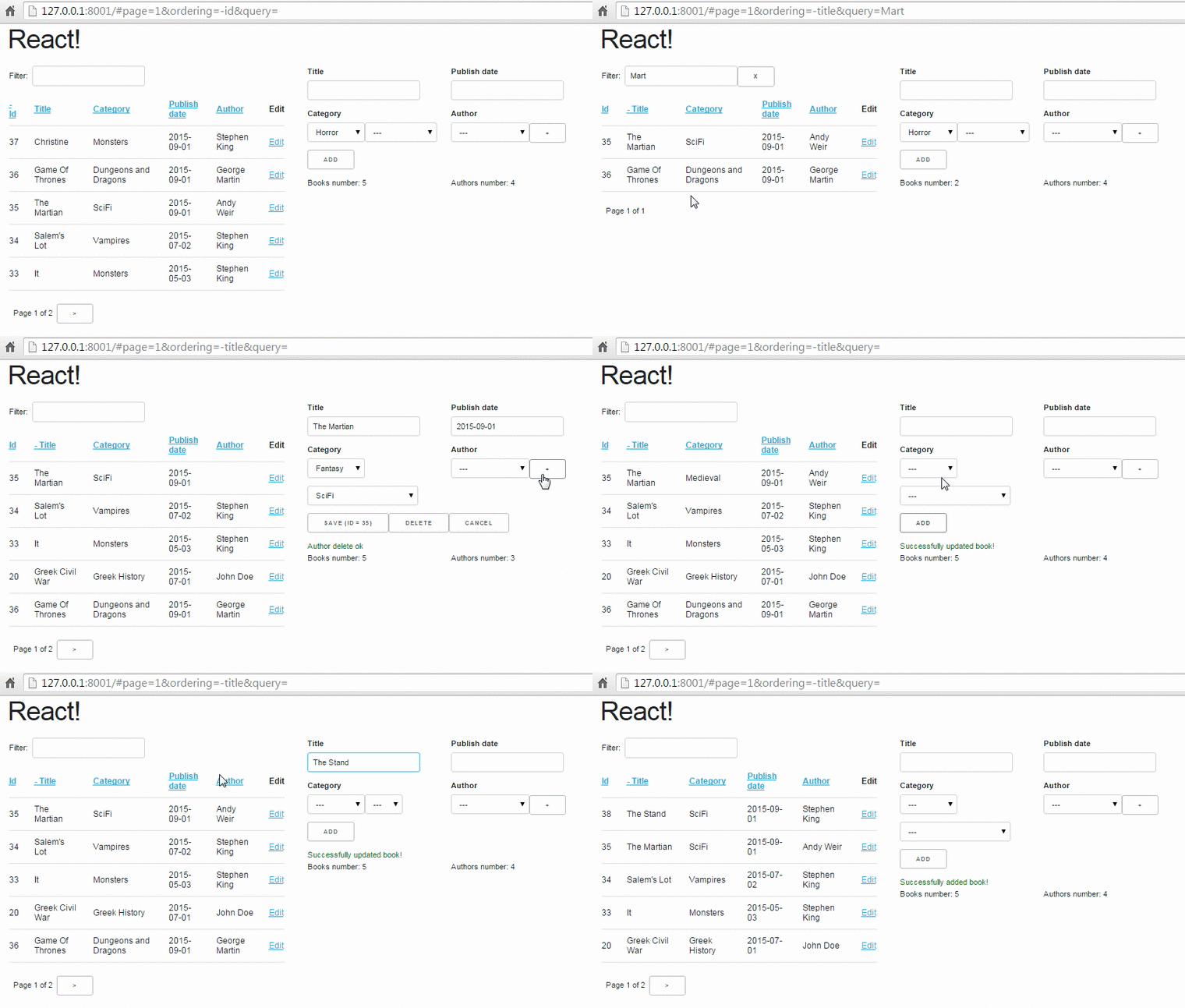
Here’s a demo of the final application:

Our project

We can see that, when compared to the previous version this one has:

  • Sorting by table columns
  • Pagination
  • Message for loading
  • Client side url updating (with hashes)
  • Cascading drop downs (selecting category will filter out subcategories)
  • Integration with jquery-ui datepicker
  • Add a child object (author)
  • Add authors with a modal dialog (popup)
  • Delete authors (using the "-" button)
  • Colored ajax result messages (green when all is ok, red with error)
  • A statistics panel (number of books / authors)

In the paragraphs below, beyond the whole architecture, we’ll see a bunch of techniques such as:

  • Creating reusable flux components
  • Integrating react with jquery
  • Creating cascading dropdowns
  • Updating URLs with hashes
  • Adding pagination/sorting/querying to a table of results
  • Displaying pop ups

More about Flux components

Before delving into the source code of the above application, I’d like to make crystal what is the proposed way to call methods in the flux chain and which types of components can include other types of components. Let’s take a look at the following diagram:

flux dependencies

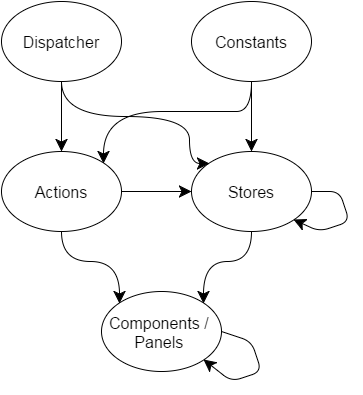
The arrows display the dependencies of the Flux architecture - an arrow from X to Y means that a component of type Y could depend on an Component of type X (of example, a store could depend on an action or another store but not on a panel).

In more detail, we can see that in the top of the hierarchy, having no dependencies are the Dispatcher and the Constants. The Dispatcher is just a single component (which actually is a singleton - only one dispatcher exists in each single page react-flux application) that inherits from the Facebook’s dispatcher and is imported by the action components (since action methods defined in action components call the dispatch method of the dispatcher passing the correct parameters) and the stores which do the real actions when an action is dispatched, depending on the action type. The Constant components define constant values for the action types and are used by both the actions (to set the action types to the dispatch calls) and by the stores to be used on the switch statement when an action is dispatched. As an example, for BookActions we have the following

var BookConstants = require('../constants/BookConstants')
var AppDispatcher = require('../dispatcher/AppDispatcher').AppDispatcher;

var BookActions = {
    change_book: function(book) {
        AppDispatcher.dispatch({
            actionType: BookConstants.BOOK_CHANGE,
            book: book
        });
    },
// Other book actions [...]

and for BookStore

var $ = require('jquery');
var AppDispatcher = require('../dispatcher/AppDispatcher').AppDispatcher;
var BookConstants = require('../constants/BookConstants')

// [...]

BookStore.dispatchToken = AppDispatcher.register(function(action) {
    switch(action.actionType) {
        case BookConstants.BOOK_EDIT:
            _editBook(action.book);
        break;
// [...] other switch branches

An interesting thing to see is that the actions depend only on the Dispatcher and on the Constants, while the stores also depend on actions (not only from the same action types as the store type, for example AuthorStore depends on both AuthorActions and MessageActions) and on other stores. This means that the actions should be a "clean" component: Just declare your action methods whose only purpose is to pass the action type along with the required parameters to the dispatcher.

On the other hand, the stores are depending on both actions and other stores. The action dependency is because sometimes when something is done in a store we need to notify another store to do something as a response to that. For example, in our case, when a book is updated we need to notify the message store to show the "Book updated ok" message. This preferrably should not be done by directly calling the corresponding method on the message store but instead by calling the corresponding action of MessageAction and passing the correct parameters (actually, the method that updates the message in MessageStore should be a private method that is called only through the action).

One thing to notice here is that you cannot call (and dispatch) an action in the same call stack (meaning it is directly called) as of another dispatch or you’ll get a Invariant Violation: Dispatch.dispatch(...): Cannot dispatch in the middle of a dispatch. error in your javascript console. Let’s see an example of what this means and how to avoid it because its a common error. Let’s say that we have the following code to a store:

AppDispatcher.register(function(action) {
    switch(action.actionType) {
        case Constants.TEST_ERR:
            TestActions.action1();
        break;
        case Constants.TEST_OK1:
            setTimeout(function() {
                TestActions.action1();
            }, 0);

        break;
        case Constants.TEST_OK2:
            $.get('/get/', function() {
                TestActions.action1();
            });

        break;
    }
    return true;
});

Here, the TEST_ERR branch will throw an error because the TestAction.action1 is in the same call stack as this dispatch! On the other hand, both TEST_OK1 and TEST_OK2 will work: TEST_OK2 is the most usual, since most of the times we want to call an action as a result of an ajax call - however, sometimes we want to call an action without any ajax — in this case we use the setTimeout (with a timeout of 0 ms) in order to move the call to TestActions.action1() to a different call stack.

Now, as I mentioned before, there’s also a different-store dependency on stores. This dependency is needed because some stores may offer public methods for other stores to use (methods that don’t actually need to be dispatched through the dispatcher) and for the waitFor method , in case there are two different stores that respond to a single action and want to have one store executing its dispatch method before the other. (the waitFor method takes the dispatchToken, which is the result of Dispatcher.register of a different store as a parameter in order to wait for that action to finish).

Finally, the Panels depend on both actions (to initiate an action as a response to user input) and stores (to read the state of the each required store when it is changed). Of course, not all panels actually depend on stores, since as we already know the state of a React app should be kept as high in the hierarchy as possible, so a central component will get the state of a store and pass the required state attributes to its children through parameters. On the other hand, every component that responds to user input will have to import am action object and call the corresponding method — we should never pass callbacks from a parent to a child component as a parameter anymore unless we want to make the component reusable (more on this later).

Finally, as expected, because of their hierarchy the compoents depend on their child components (a BookTable depends on a BookTableRow etc).

Explaining the application components

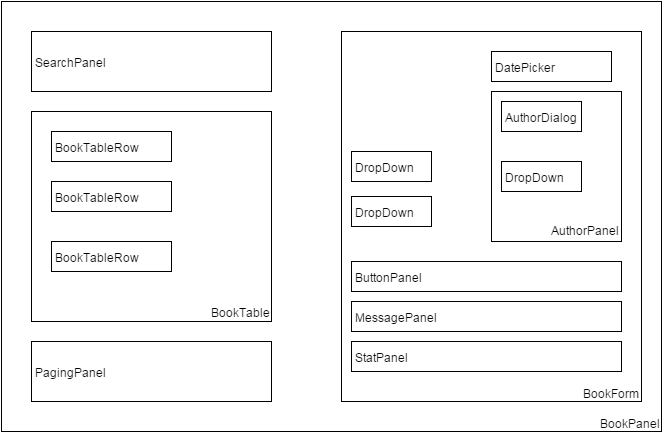
There are a lot of components that are needed for the above application. A bird’s eye view of the components and their hierarchies can be seen on the following figure:

Our components

We will first explain a bit the components that could be easily reused by other applications and after that the components that are specifically implemented for our book/author single page application.

Reusable application components

We can see that beyond the specific components (BookPanel, BookTable etc) there’s a bunch of more general components (DropDown, DatePicker, PagingPanel, SearchPanel, MessagePanel) that have names like they could be used by other applications (for example every application that wants to implement a DropDown could use our component) and not only by the Book-Author application. Let’s take a quick look at these components and if they are actually reusable:

DatePicker.react.js

The datepicker component has more or less the same structure as with the dropdown: It needs one parameter for its current value (props.value) and another as the callback to the function when the date is changed (once again this is required to have a reusable component):

var React = require('react');

var DatePicker = React.createClass({
    render: function() {
        return(
            <input type='text' ref='date' value={this.props.value} onChange={this.handleChange} />
        );
    },
    componentDidMount: function() {
        $(React.findDOMNode(this)).datepicker({ dateFormat: 'yy-mm-dd' });
        $(React.findDOMNode(this)).on('change', this.handleChange);
    },
    componentWillUnmount: function() {

    },
    handleChange: function() {
        var date = React.findDOMNode(this.refs.date).value
        this.props.onChange(date);
    }
});

module.exports.DatePicker = DatePicker ;

Another thing we can see here is how can integrate jquery components with react: When the component is mounted, we get its DOM component using React.findDomNode(this) and convert it to a datepicker. We also set its change function to be the passed callback.

PagingPanel.react.js

The paging panel is not actually a reusable component because it requires BookActions (to handle next and previous page clicks) - so it can’t be used by Authors (if authors was a table that is). However, we can easily change it to be reusable if we passed callbacks for next and previous page so that the component including PagingPanel would call the correct action on each click. Having a reusable PagingPangel is not needed for our application since only books have a table.

var React = require('react');
var BookActions = require('../actions/BookActions').BookActions;

var PagingPanel = React.createClass({
    render: function() {
        return(
            <div className="row">
                {this.props.page==1?'':<button onClick={this.onPreviousPageClick}>&lt;</button>}
                &nbsp; Page {this.props.page} of {this.getTotalPages()} &nbsp;
                {this.props.page==this.getTotalPages()?'':<button onClick={this.onNextPageClick} >&gt;</button>}
            </div>
        );
    },
    onNextPageClick: function(e) {
        e.preventDefault();
        BookActions.change_page(this.props.page+1)
    },
    onPreviousPageClick: function(e) {
        e.preventDefault();
        BookActions.change_page(this.props.page-1)
    },
    getTotalPages: function() {
        return Math.ceil(this.props.total / this.props.page_size);
    }
})

module.exports.PagingPanel = PagingPanel;

The component is very simple, it needs three parameters:

  • the current page (props.page)
  • the page size (props.page_size)
  • the total pages number (props.total)

and just displayd the current page along with buttons to go to the next or previous page (if these buttons should be visible of course).

SearchPanel.react.js

The SearchPanel is another panel that could be reusable if we’d passed a callbeck instead of calling the BookActions.search action directly. The promise behavior has been explained in the previous posts and is needed to buffer the queries to the server when a user types his search query.

var React = require('react');
var BookActions = require('../actions/BookActions').BookActions;

var SearchPanel = React.createClass({
    getInitialState: function() {
        return {
            search: this.props.query,
        }
    },
    componentWillReceiveProps: function(nextProps) {
      this.setState({
            search: nextProps.query
      });
    },
    render: function() {
        return (
            <div className="row">
                <div className="one-fourth column">
                    Filter: &nbsp;
                    <input ref='search' name='search' type='text' value={this.state.search} onChange={this.onSearchChange} />
                    {this.state.search?<button onClick={this.onClearSearch} >x</button>:''}
                </div>
            </div>
        )
    },
    onSearchChange: function() {
        var query = React.findDOMNode(this.refs.search).value;
        if (this.promise) {
            clearInterval(this.promise)
        }
        this.setState({
            search: query
        });
        this.promise = setTimeout(function () {
            BookActions.search(query);
        }.bind(this), 400);
    },
    onClearSearch: function() {
        this.setState({
            search: ''
        });
        BookActions.search('');
    }
});

module.exports.SearchPanel = SearchPanel;

As we can see, this panel is a little different than the previous ones because it actually handles its own local state: When the component should get properties from its parent compoent, its state will be updated to the query attribute - so the current value of the search query gets updated through properties. However, when the value of the search input is changed, we see that the local state is changed immediately but the BookActions.search (or the corresponding callback) gets called only when the timeout has passed!

The above means that we can type whatever we want on the search input, but it at first it will be used only locally to immediately update the value of the input and, only after the timeout has fired the search action will be called. If we hadn’t used the local state it would be much more difficult to have this consistent behavior (we’d need to add two actions, one to handle the search query value change and another to handle the timeout firing — making everythimg much more complicated).

MessagePanel

The MessagePanel is really interesting because it is a reusable component that actually has its own action and store module! This component can be reused in different applications that need to display message but not on the same application (because a single state is kept for all messages). If we wanted to use a different MessagePanel for Books or Authors then we’d need to keep both in the state and also it to the action to differentiate between messages for author and for book. Instead, by keeping a single Messages state for both Books and Authors we have a much more simple version.

MessagePanel.react.js

The MessagePanel component has a local state which responds to changes on MessageStore. When the state of MessageStore is changed the MessagePanel will be re-rendered with the new message.

var React = require('react');
var MessageStore = require('../stores/MessageStore').MessageStore;

var MessagePanel = React.createClass({
    getInitialState: function() {
        return {

        };
    },
    render: function() {
        return(
            <div className="row">
                {this.state.message?<div className={this.state.message.color}>{this.state.message.text}</div>:""}
            </div>
        );
    },
    _onChange: function() {
        this.setState(MessageStore.getState());
    },
    componentWillUnmount: function() {
        MessageStore.removeChangeListener(this._onChange);
    },
    componentDidMount: function() {
        MessageStore.addChangeListener(this._onChange);
    }
})

module.exports.MessagePanel = MessagePanel;

MessageStore.js

The MessageStore has a (private) state containing a message that gets updated only when the ccorresponding action is dispached. The store has a single state for all messages - it doesn’t care if the messages are for books or authors.

var $ = require('jquery');
var EventEmitter = require('events').EventEmitter;
var AppDispatcher = require('../dispatcher/AppDispatcher').AppDispatcher;
var BookConstants = require('../constants/BookConstants')

var _state = {
    message: {}
};

var MessageStore = $.extend({}, EventEmitter.prototype, {
    getState: function() {
        return _state;
    },
    emitChange: function() {
        this.emit('change');
    },
    addChangeListener: function(callback) {
        this.on('change', callback);
    },
    removeChangeListener: function(callback) {
        this.removeListener('change', callback);
    }
});

MessageStore.dispatchToken = AppDispatcher.register(function(action) {
    switch(action.actionType) {
        case BookConstants.MESSAGE_ADD:
            _state.message = action.message;
            MessageStore.emitChange();
        break;
    }
    return true;
});

module.exports.MessageStore = MessageStore;

MessageActions

Finally, there are two actions that are defined for the MessageStore: One for adding an ok message and one for adding an error message - both of which have the same message type (but pass a different color parameter).

var AppDispatcher = require('../dispatcher/AppDispatcher').AppDispatcher;
var BookConstants = require('../constants/BookConstants')

var MessageActions = {
    add_message_ok: function(msg) {
        AppDispatcher.dispatch({
            actionType: BookConstants.MESSAGE_ADD,
            message: {
                color: 'green',
                text: msg
            }
        });
    },
    add_message_error: function(msg) {
        AppDispatcher.dispatch({
            actionType: BookConstants.MESSAGE_ADD,
            message: {
                color: 'green',
                text: msg
            }
        });
    }
};

module.exports.MessageActions = MessageActions;

Non-reusable application components

I don’t want to discuss the source code for all the non-reusable components since some of them are more or less the same with the previous version and are easy to understand just by checking the source code (BookTableRow and ButtonPanel). However, I’ll discuss the other, more complex components starting from the inside of the react-onion:

BookTable.react.js

I want to display this component to discuss how sorting is implemented: Each column has a key which, when passed to django-rest-framework will sort the results based on that key (the __ does a join so by author__last_name we mean that we want to sort by the last_name field of the author of each book. Also, you can pass the key as it is to sort ascending or with a minus (-) in front (for example -author__last_name).

var React = require('react');
var BookTableRow = require('./BookTableRow.react').BookTableRow;
var BookActions = require('../actions/BookActions').BookActions;

var BookTable = React.createClass({
    render: function() {
        var rows = [];
        this.props.books.forEach(function(book) {
            rows.push(<BookTableRow key={book.id} book={book} />);
        });
        return (
            <table>
                <thead>
                    <tr>
                        <th><a href='#' onClick={this.onClick.bind(this, 'id')}>{this.showOrdering('id')} Id</a></th>
                        <th><a href='#' onClick={this.onClick.bind(this, 'title')}>{this.showOrdering('title')} Title</a></th>
                        <th><a href='#' onClick={this.onClick.bind(this, 'subcategory__name')}>{this.showOrdering('subcategory__name')} Category</a></th>
                        <th><a href='#' onClick={this.onClick.bind(this, 'publish_date')}>{this.showOrdering('publish_date')} Publish date</a></th>
                        <th><a href='#' onClick={this.onClick.bind(this, 'author__last_name')}>{this.showOrdering('author__last_name')} Author</a></th>
                        <th>Edit</th>
                    </tr>
                </thead>
                <tbody>{rows}</tbody>
            </table>
        );
    },
    onClick: function(v, e) {
        e.preventDefault();
        BookActions.sort_books(v);
    },
    showOrdering: function(v) {
        if (v==this.props.ordering) {
            return '+'
        } else if ('-'+v==this.props.ordering) {
            return '-'
        }
    }
});

module.exports.BookTable = BookTable ;

The only thing that needs explaining in this module is the line of the form

<th><a href='#' onClick={this.onClick.bind(this, 'id')}>{this.showOrdering('id')} Id</a></th>

that creates the title of each column and triggers ascending or descending sorting on this column by clicking on it. So, we can see that we’ve create an onClick function that actually expects a value - the key to that column. To allow passing that value, we use the bind method of the function object which will create new a function that has this key as its first parameter. If we didn’t want to use bind, we’d need to creatre 5 different function (onIdClick, onTitleClick etc)! The most common usage of bind is to actually bind a function to an object (that’s what the first parameter to this function does) so that calling this inside that function will refer to that object - here we leave the binding of the function to the same object and only do the parameter passing.

Also, the showOrdering checks if the current ordering is the same as that column’s key and displays either a + (for ascending) or - (for descending) in front of the column title.

AuthorDialog.react.js

This is a handmade pop-up dialog that gets displayed when a new author is added (the + button is clicked) using only css to center it on the screen when it is displayed. We can see that it is either visible on invisible based on the showDialog input property which actually is the only input this component requires. When it is visible and the ok or cancel button are pressed the corresponding action will be dispatched (which will actually close this popup by setting the showDialog to false):

var React = require('react');
var AuthorActions = require('../actions/AuthorActions').AuthorActions;

var AuthorDialog = React.createClass({

    render: function() {
        if (!this.props.showDialog) {
            return (
                <div />
            )
        } else {
            return(
                <div className='modal-dialog' id="dialog-form"  >
                    <label htmlFor="first_name">First name:</label> <input type='text' ref='first_name' name='first_name' /> <br />
                    <label htmlFor="last_name">Last name:</label> <input type='text' ref='last_name' name='last_name' /> <br />
                    <button onClick={this.onOk}>Ok</button>
                    <button onClick={this.onCancel} >Cancel</button>
                </div>

            );
        }
    },
    onCancel: function(e) {
        e.preventDefault();
        AuthorActions.hide_add_author();
    },
    onOk: function(e) {
        e.preventDefault();
        first_name = React.findDOMNode(this.refs.first_name).value;
        last_name = React.findDOMNode(this.refs.last_name).value;
        AuthorActions.add_author_ok({
            first_name: first_name,
            last_name: last_name
        });
    }
});

module.exports.AuthorDialog = AuthorDialog ;

AuthorPanel.react.js

The AuthorPanel displays the author select DropDown along with the + (add author) and - (delete author) buttons. It also contains the AuthorDialog which will be displayed or not depending on the value of the showDialog property.

var React = require('react');
var DropDown = require('./DropDown.react').DropDown;
var AuthorDialog = require('./AuthorDialog.react').AuthorDialog;
var AuthorActions = require('../actions/AuthorActions').AuthorActions;

var AuthorPanel = React.createClass({
    getInitialState: function() {
        return {};
    },
    render: function() {
        var authorExists = false ;
        if(this.props.authors) {
            var ids = this.props.authors.map(function(x) {
                return x.id*1;
            });

            if(ids.indexOf(1*this.props.author)>=0 ) {
                authorExists = true;
            }
        }

        return(
            <div className='one-half column'>
                <AuthorDialog showDialog={this.props.showDialog} />
                <label forHtml='date'>Author</label>
                <DropDown options={this.props.authors} dropDownValueChanged={this.props.onAuthorChanged} value={authorExists?this.props.author:''} />
                <button onClick={this.addAuthor} >+</button>
                {authorExists?<button onClick={this.deleteAuthor}>-</button>:""}
            </div>
        );
    },
    addAuthor: function(e) {
        e.preventDefault();
        console.log("ADD AUTHOR");
        AuthorActions.show_add_author();
    },
    deleteAuthor: function(e) {
        e.preventDefault();
        AuthorActions.delete_author(this.props.author);
        console.log("DELETE AUTHOR");
        console.log(this.props.author);
    },
});

module.exports.AuthorPanel = AuthorPanel;

As we can see, there are three properties that are passed to this component:

  • props.author: The currently selected author
  • props.authors: The list of all authors
  • props.onAuthorChanged: A callback that is called when the author is changed. Here, we could have used an action (just like for add/delete author) instead of a callback, however its not actually required. When the author is changed, it means that the currently edited book’s author is changed. So we could propagate the change to the parent (form) component that handles the book change along with the other changes (i.e title, publish date etc).

StatPanel.react.js

The StatPanel is an interesting, read-only component that displays the number of authors and books. This component requests updates from both the BookStore and AuthorStore - when their state is updated the component will be re-rendered with the number of books and authors:

var React = require('react');
var BookStore = require('../stores/BookStore').BookStore;
var AuthorStore = require('../stores/AuthorStore').AuthorStore;

var StatPanel = React.createClass({
    getInitialState: function() {
        return {};
    },
    render: function() {
        var book_len = '-';
        var author_len = '-';
        if(this.state.books) {
            book_len = this.state.books.length
        }
        if(this.state.authors) {
            author_len = this.state.authors.length
        }
        return(
            <div className="row">
                <div className="one-half column">
                    Books number: {book_len}
                </div>
                <div className="one-half column">
                    Authors number: {author_len}
                </div>
                <br />
            </div>
        );
    },
    _onBookChange: function() {
        this.setState({
            books:BookStore.getState().books
        });
    },
    _onAuthorChange: function() {
        this.setState({
            authors: AuthorStore.getState().authors
        });
    },
    componentWillUnmount: function() {
        AuthorStore.removeChangeListener(this._onAuthorChange);
        BookStore.removeChangeListener(this._onBookChange);
    },
    componentDidMount: function() {
        AuthorStore.addChangeListener(this._onAuthorChange);
        BookStore.addChangeListener(this._onBookChange);
    }
});

module.exports.StatPanel = StatPanel ;

We’ve added different change listeners in case we wanted to do some more computations for book or author change (instead of just getting their books / authors property). Of course the same behavior could be achieved with just a single change listener that would get both the books and authors.

BookForm.react.js

The BookForm is one of the most complex panels of this application (along with BookPanel) because it actually contains a bunch of other panels and has some callbacks for them to use.

We can see that, as explained before, when the current book form values are changed (through callbacks) the change_book action will be called.

var React = require('react');
var BookActions = require('../actions/BookActions').BookActions;
var DropDown = require('./DropDown.react.js').DropDown;
var StatPanel = require('./StatPanel.react.js').StatPanel;
var MessagePanel = require('./MessagePanel.react.js').MessagePanel;
var DatePicker = require('./DatePicker.react.js').DatePicker;
var ButtonPanel = require('./ButtonPanel.react.js').ButtonPanel;
var AuthorPanel = require('./AuthorPanel.react.js').AuthorPanel;
var CategoryStore = require('../stores/CategoryStore').CategoryStore;
var AuthorStore = require('../stores/AuthorStore').AuthorStore;
var loadCategories = require('../stores/CategoryStore').loadCategories;
var loadAuthors = require('../stores/AuthorStore').loadAuthors;

var BookForm = React.createClass({
    getInitialState: function() {
        return {};
    },
    render: function() {
        return(
            <form onSubmit={this.onSubmit}>
                <div className='row'>
                    <div className='one-half column'>
                        <label forHtml='title'>Title</label>
                        <input ref='title' name='title' type='text' value={this.props.book.title} onChange={this.onTitleChange} />
                    </div>
                    <div className='one-half column'>
                        <label forHtml='date'>Publish date</label>
                        <DatePicker ref='date' onChange={this.onDateChange} value={this.props.book.publish_date} />
                    </div>
                </div>
                <div className='row'>
                    <div className='one-half column'>
                        <label forHtml='category'>Category</label>
                        <DropDown options={this.state.categories} dropDownValueChanged={this.onCategoryChanged} value={this.props.book.category} />
                        <DropDown options={this.state.subcategories} dropDownValueChanged={this.onSubCategoryChanged} value={this.props.book.subcategory} />
                    </div>
                    <AuthorPanel authors={this.state.authors} author={this.props.book.author} onAuthorChanged={this.onAuthorChanged} showDialog={this.state.showDialog} />
                </div>

                <ButtonPanel book={this.props.book}  />
                <MessagePanel />
                <StatPanel  />
            </form>
        );
    },
    onSubmit: function(e) {
        e.preventDefault();
        BookActions.save(this.props.book)
    },
    onTitleChange: function() {
        this.props.book.title = React.findDOMNode(this.refs.title).value;
        BookActions.change_book(this.props.book);
    },
    onDateChange: function(date) {
        this.props.book.publish_date = date;
        BookActions.change_book(this.props.book);
    },
    onCategoryChanged: function(cat) {
        this.props.book.category = cat;
        this.props.book.subcategory = '';
        BookActions.change_book(this.props.book);
    },
    onSubCategoryChanged: function(cat) {
        this.props.book.subcategory = cat;
        BookActions.change_book(this.props.book);
    },
    onAuthorChanged: function(author) {
        this.props.book.author = author;
        BookActions.change_book(this.props.book);
    },
    _onChangeCategories: function() {
        this.setState(CategoryStore.getState());
    },
    _onChangeAuthors: function() {
        this.setState(AuthorStore.getState());
    },
    componentWillUnmount: function() {
        CategoryStore.removeChangeListener(this._onChangeCategories);
        AuthorStore.removeChangeListener(this._onChangeAuthors);
    },
    componentDidMount: function() {
        CategoryStore.addChangeListener(this._onChangeCategories);
        AuthorStore.addChangeListener(this._onChangeAuthors);
        loadCategories();
        loadAuthors();
    }
});

module.exports.BookForm = BookForm;

The above component listens for updates on both Category and Author store to update when the authors (when an author is added or deleted) and the categories are changed (for example to implement the cascading dropdown functionality), so the list of authors and the list of categories and subcategoreis are all stored in the local state. The book that is edited is just passed as a property - actually, this is the only property that this component needs to work.

BookPanel.react.js

Finally, BookPanel is the last component we’ll talk about. This is the central component of the application - however we’ll see that it is not very complex (since most user interaction is performed in other components). This component just listens on changes in the BookStore state and depending on the parameters either displays the "Loading" message or the table of books (depending on the state of ajax calls that load the books). The other parameters like the list of books, the ordering of the books etc are passed to the child components.

var React = require('react');
var BookStore = require('../stores/BookStore').BookStore;
var BookActions = require('../actions/BookActions').BookActions;
var SearchPanel = require('./SearchPanel.react').SearchPanel;
var BookTable = require('./BookTable.react').BookTable;
var PagingPanel = require('./PagingPanel.react').PagingPanel;
var BookForm = require('./BookForm.react').BookForm;

var reloadBooks = require('../stores/BookStore').reloadBooks;

var BookPanel = React.createClass({
    getInitialState: function() {
        return BookStore.getState();
    },
    render: function() {
        return(
            <div className="row">
                <div className="one-half column">
                    {
                        this.state.loading?
                        <div class='loading' >Loading...</div>:
                        <div>
                            <SearchPanel query={this.state.query} ></SearchPanel>
                            <BookTable books={this.state.books} ordering={this.state.ordering} />
                            <PagingPanel page_size='5' total={this.state.total} page={this.state.page} />
                        </div>
                    }
                </div>
                <div className="one-half column">
                    <BookForm
                        book={this.state.editingBook}
                    />
                </div>
                <br />
            </div>
        );
    },
    _onChange: function() {
        this.setState( BookStore.getState() );
    },
    componentWillUnmount: function() {
        BookStore.removeChangeListener(this._onChange);
    },
    componentDidMount: function() {
        BookStore.addChangeListener(this._onChange);
        reloadBooks();
    }
});

module.exports.BookPanel = BookPanel ;

The Actions

All actions are rather simple components without other dependencies as we’ve already discussed. They just define "actions" (which are simple functions) that create the correct parameter object type and pass it to the dispatcher. The only attribute that is required for this object is the actionType that should get a value from the constants. I won’t go into any more detail about the actions — please check the source code and all your questions will be resolved.

The Stores

First of all, all stores are defined through the following code that is already discussed in the previous part:

var MessageStore = $.extend({}, EventEmitter.prototype, {
    getState: function() {
        return _state;
    },
    emitChange: function() {
        this.emit('change');
    },
    addChangeListener: function(callback) {
        this.on('change', callback);
    },
    removeChangeListener: function(callback) {
        this.removeListener('change', callback);
    }
});

When the state of a store is changed its emitChange function will be called (I mean called manually from the code that actually changes the state and knows that it has actually been changed - nothing will be called automatically). When emitChange is called, all the components that listen for changes for this component (that have called addChangeListener of the store with a callback) will be notified (their callback will be called) and will use getState of the store to get its current state - after that, these components will set their own state to re-render and display the changes to the store.

Let’s now discuss the four stores defined — I will include only the parts of each file that are actually interesting, for everything else use the source Luke!

MessageStore.js

A very simple store that goes together with MessagePanel and MessageActions. It just keeps a state with the current message object and just changes this message when the MESSAGE_ADD message type is dispatched. After changing the message, the listeners (only one in this case) will be notified to update the displayed message:

var _state = {
    message: {}
};

MessageStore.dispatchToken = AppDispatcher.register(function(action) {
    switch(action.actionType) {
        case BookConstants.MESSAGE_ADD:
            _state.message = action.message;
            MessageStore.emitChange();
        break;
    }
    return true;
});

AuthorStore.js

Here we see that the local state has an array of the authors and a showDialog flag that controls the state of the add author popup. For the AUTHOR_ADD and HIDE_ADD_AUTHOR cases of the dispatch we just change the state of this flag and emit the change; the BookForm listens for changes to the AuthorStore and will pass the showDialog to the AuthorPanel as a property which in turn will pass it to AuthorDialog and it will display the panel (or not) depending on the value of that flag. This flag will also take a false value when the add author ajax call returns.

The showDialog flag is not related to the actual data but is UI-related. This is something that we should keep in mind when creating stores: Stores don’t only contain the actual data (like models in an MVC application) but they should also contain UI (controller/view in an MVC architecture) related information since that is also part of the state!

We can see that the ajax calls just issue the corresponding HTTP method to the authors_url and when they return the add_message_ok or add_message_error methods of MessageActions will be called. These calls are in a different call stack so everything will work fine (please remember the discussion about dispatches in different call stacks before).

Finally, on the success of _load_authors the map array method is called to transform the returned data as we want it:

var $ = require('jquery');

var _state = {
    authors: [],
    showDialog: false
}

var _load_authors = function() {
    $.ajax({
        url: _props.authors_url,
        dataType: 'json',
        cache: false,
        success: function(data) {
            _state.authors = data.map(function(a){
                return {
                    id: a.id,
                    name: a.last_name+' '+a.first_name
                }
            });
            AuthorStore.emitChange();
        },
        error: function(xhr, status, err) {
            MessageActions.add_message_error(err.toString());
        }
    });
};

var _deleteAuthor = function(authorId) {
    $.ajax({
        url: _props.authors_url+authorId,
        method: 'DELETE',
        cache: false,
        success: function(data) {
            _load_authors();
            MessageActions.add_message_ok("Author delete ok");
            AuthorActions.delete_author_ok();
        },
        error: function(xhr, status, err) {
            MessageActions.add_message_error(err.toString());
        }
    });
};

var _addAuthor = function(author) {
    $.ajax({
        url: _props.authors_url,
        dataType: 'json',
        method: 'POST',
        data:author,
        cache: false,
        success: function(data) {
            MessageActions.add_message_ok("Author add  ok");
            _state.showDialog = false;
            _load_authors();
        },
        error: function(xhr, status, err) {
            MessageActions.add_message_error(err.toString());
        }
    });

};

AuthorStore.dispatchToken = AppDispatcher.register(function(action) {
    switch(action.actionType) {
        case BookConstants.SHOW_ADD_AUTHOR:
            _state.showDialog = true;
            AuthorStore.emitChange();
        break;
        case BookConstants.HIDE_ADD_AUTHOR:
            _state.showDialog = false;
            AuthorStore.emitChange();
        break;
        case BookConstants.AUTHOR_ADD:
            _addAuthor(action.author);
        break;
        case BookConstants.AUTHOR_DELETE:
            _deleteAuthor(action.authorId);
        break;
    }
    return true;
});

CategoryStore.js

The CategoryStore has an interesting functionality concerning the load_subcategory function. This function is called whenever a book is changed (so its category form field may be changed and the subcategories may be reloaded based on this category) or is edited (so the category is that of the new book and once again the subcategories may need to because rerendered). It is important that we actually pass the current category to the book to the action. If for example we wanted to retrieve that from the state of the BookStore then we’d need to use the waitFor functionality of the dispatcher so that the category of the current book would be changed first then the load_category (that would read that value to read the subcategoreis) would be called after that.

Also, another thing to notice here is that there’s a simple subcat_cache that for each category contains the subcategories of that category so that we won’t do repeated ajax calls to reload the subcategories each time the category is changed.

var _state = {
    categories: [],
    subcategories: []
}

var _current_cat = ''
var _subcat_cache = []

var _load_categories = function() {
    $.ajax({
        url: _props.categories_url,
        dataType: 'json',
        cache: false,
        success: function(data) {
            _state.categories = data;
            CategoryStore.emitChange();
        },
        error: function(xhr, status, err) {
            console.error(this.props.url, status, err.toString());
        }
    });
};

var _load_subcategories = function(cat) {

    if(!cat) {
        _state.subcategories = [];
        CategoryStore.emitChange();
        return ;
    }
    if(_subcat_cache[cat]) {
        _state.subcategories = _subcat_cache[cat] ;
        CategoryStore.emitChange();
    }
    $.ajax({
        url: _props.subcategories_url+'?category='+cat,
        dataType: 'json',
        cache: false,
        success: function(data) {
            _state.subcategories = data;
            _subcat_cache[cat] = data;
            CategoryStore.emitChange();
        },
        error: function(xhr, status, err) {
            console.error(this.props.url, status, err.toString());
        }
    });
};

CategoryStore.dispatchToken = AppDispatcher.register(function(action) {
    switch(action.actionType) {
        case BookConstants.BOOK_EDIT:
        case BookConstants.BOOK_CHANGE:
            _load_subcategories(action.book.category);
        break;
        case BookConstants.BOOK_EDIT_CANCEL:
            _state.subcategories = [];
            CategoryStore.emitChange();
        break;
    }
    return true;
});

BookStore.js

Here, beyond the book-related functionality we have also implemented the URL updating. The getUrlParameter that returns the value of a URL parameter has been taken from http://stackoverflow.com/questions/19491336/get-url-parameter-jquery. Depending on the url parameters, we set some initial properties of the local state and, on the other hand, when the search query, ordering or page are changed, the _update_href function is called to update the url parameters. This is not really related to the flux architecture beyond the initialization of state.

Another thing to notice is that the when the _search is executed whenever there’s a change in the list of books (query is updated, sorting is changed, page is changed or when an author is deleted since the books that have that author should now display an empty field). The setTimeout in the _search ajax return is to simulate a 400ms delay (in order for the "Loading" text to be visible).

function getUrlParameter(sParam) {
    var sPageURL = $(location).attr('hash');
    sPageURL = sPageURL.substr(1)
    var sURLVariables = sPageURL.split('&');
    for (var i = 0; i < sURLVariables.length; i++)  {
        var sParameterName = sURLVariables[i].split('=');
        if (sParameterName[0] == sParam)  {
            return sParameterName[1];
        }
    }
}

var _page_init = 1*getUrlParameter('page');
if(!_page_init) _page_init = 1 ;
var _ordering_init = getUrlParameter('ordering');
if(!_ordering_init) _ordering_init = '' ;
var _query_init = getUrlParameter('query');
if(!_query_init) _query_init = ''

var _state = {
    loading: false,
    books: [],
    message:{},
    page: _page_init,
    total: 0,
    editingBook: {},
    query: _query_init,
    ordering: _ordering_init
}


var _search = function() {
    _state.loading = true;
    BookStore.emitChange();

    $.ajax({
        url: _props.url+'?search='+_state.query+"&ordering="+_state.ordering+"&page="+_state.page,
        dataType: 'json',
        cache: false,
        success: function(data) {
            // Simulate a small delay in server response
            setTimeout(function() {
                _state.books = data.results;
                _state.total = data.count;
                _state.loading = false;
                BookStore.emitChange();
            }, 400);
        },
        error: function(xhr, status, err) {
            _state.loading = false;
            MessageActions.add_message_error(err.toString());
            BookStore.emitChange();
        }
    });
};

var _reloadBooks = function() {
    _search('');
};


var _clearEditingBook = function() {
    _state.editingBook = {};
};

var _editBook = function(book) {
    _state.editingBook = book;
    BookStore.emitChange();
};

var _cancelEditBook = function() {
    _clearEditingBook();
    BookStore.emitChange();
};

var _update_href = function() {
    var hash = 'page='+_state.page;
    hash += '&ordering='+_state.ordering;
    hash += '&query='+_state.query;
    $(location).attr('hash', hash);
}

BookStore.dispatchToken = AppDispatcher.register(function(action) {
    switch(action.actionType) {
        case BookConstants.BOOK_EDIT:
            _editBook(action.book);
        break;
        case BookConstants.BOOK_EDIT_CANCEL:
            _cancelEditBook();
        break;
        case BookConstants.BOOK_SAVE:
            _saveBook(action.book);
        break;
        case BookConstants.BOOK_SEARCH:
            _state.query = action.query
            _state.page = 1;
            _update_href();
            _search();
        break;
        case BookConstants.BOOK_DELETE:
            _deleteBook(action.bookId);
        break;
        case BookConstants.BOOK_CHANGE:
            _state.editingBook = action.book;
            BookStore.emitChange();
        break;
        case BookConstants.BOOK_PAGE:
            _state.page = action.page;
            _update_href();
            _search();
        break;
        case BookConstants.AUTHOR_DELETE_OK:
            _search();
        break;
        case BookConstants.BOOK_SORT:
            _state.page = 1;
            if(_state.ordering == action.field) {
                _state.ordering = '-'+_state.ordering
            } else {
                _state.ordering = action.field;
            }
            _update_href();
            _search();
        break;
    }
    return true;
});

Conclusion

The application presented here has a number of techniques that will help you when you actually try to create a more complex react flux application. I hope that in the whole three part series I’ve thoroughly explained the flux architecture and how each part of (actions, stores, components) it works. Also, I tried to cover almost anything that somebody creating react/flux application will need to use — if you feel that something is not covered and could be integrated to the authors/book application I’d be happy to research and implement it!